Extract Multiple Audio Tracks from MP4
Use an MP4 that already contains separate audio tracks. Where do I get the source file?
Choose a track, then listen and download. Track numbers do not identify the microphone or desktop source.
Try a different MP4 that contains an audio stream. A silent video cannot produce an audio track.
Choose another fileOpen an MP4 with separate audio tracks. Preview each track and save compatible audio as M4A or audio-only MP4 without uploading or re-encoding.
The recording needs separate audio tracks for each source you want to export.
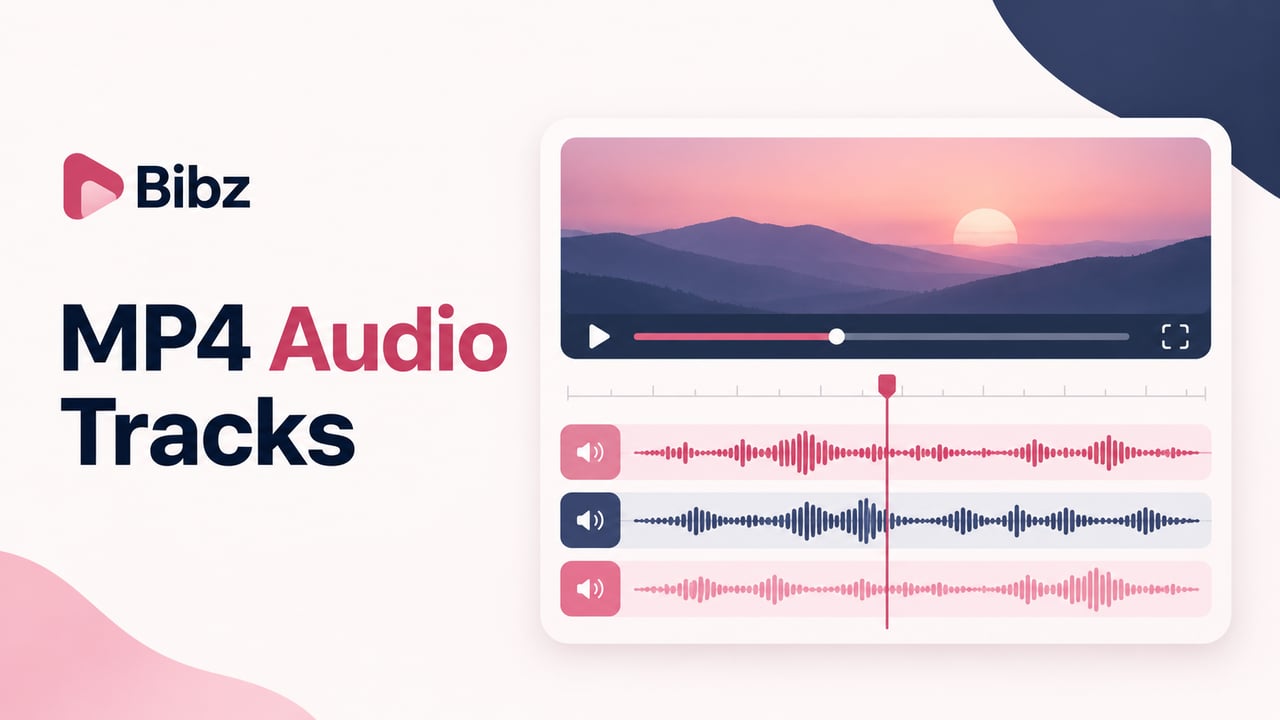
Extract MP4 audio tracks separately, with the original sound intact
Use this MP4 audio track extractor when your recording already contains the sound you need in a separate track. Open the recording, inspect its tracks, choose one, and listen before saving. You can check an OBS microphone track, export an alternate language, or save the only audio track in a video. The recording structure determines the result: separately recorded tracks can be exported individually; voices and music already mixed together remain mixed.
Check the recording before choosing a track
A video might contain one final mix, several isolated sources, or an additional commentary track. Inspect the list and listen to identify the source. A track number or an embedded name is a clue, not proof of what was recorded.Create an audio copy without changing the video
The selected MP4 remains your source file. Bibz creates a new download containing the chosen audio and omits the picture. Keep the original recording until the exported file works in your intended editor, especially when you need to return to the video for timing or content checks.
See which MP4 audio track you are exporting
Select a supported track, wait for preparation to finish, and check the current track label before playing or downloading. The export details identify the file you are saving. If you need another track, save the current one first and then select the next. Each download contains one selected track.
.mp4session.mp4
Video track
Audio track 1: Microphone · AAC
Audio track 2: Desktop audio · AACPrepare track 1 → session-track-1.m4a
Prepare track 2 → session-track-2.m4a
Each export contains one audio track.This is an illustrative recording layout. The built-in sample uses synthetic audio so you can test selection and playback without opening a personal recording.
Choose the right audio track and keep its encoded quality
Extraction copies an existing audio track into its own compatible container. The controls help you identify and save that track.
Inspect all available audio tracks
Read the available track numbers, names and codec labels before starting an export. Unsupported tracks are identified in the list. If several entries look alike, listen to a distinctive passage rather than assuming that track one is the microphone or that the longest-looking name represents the finished mix.
Preview the selected track
Preparing a track makes its audio output available for a listening check. Confirm that you hear the intended speaker, game sound or language. The currently prepared result has its own label, which matters when you compare several tracks. Browser playback depends on support for the original audio codec.
Export without another encoding pass
Compatible audio data is copied without re-encoding. You do not need to choose a bitrate, quality percentage or sample rate for this operation. The process preserves what was recorded, including any existing noise or distortion; it does not improve poor audio or repair a missing source.
Save a clearly identified audio file
AAC and ALAC tracks are saved as M4A. Other compatible tracks use an MP4 containing audio only. The filename includes the track number, and the result identifies the current export. Verify the file type before handing it to software that specifically requires MP3 or WAV.
- Input format
- MP4
- Output file
- M4A / MP4
- File size limit
- 256 MiB
Recording workflows
A practical fit for OBS recordings and alternate soundtracks

Bring an OBS track into your editor
An OBS recording can store sources on different tracks when recording is configured that way. Use the exported microphone or desktop track to continue editing the audio separately. If the file contains only a mixed track, extraction cannot reconstruct the original sources. For the next recording, assign sources to recording tracks and enable the tracks you intend to save.
Work around an import that exposes only one track
Your editing workflow may make one soundtrack easy to access while leaving another inconvenient to select. Export the required existing track and import that audio file deliberately. Match it to the same recording version, retain the original for comparison, and check the beginning and a later passage before doing detailed edits.
Select commentary or a different language
When a video contains an alternate soundtrack, identify it by listening instead of relying only on metadata. Export the version needed for your project and use a descriptive filename after downloading. This is useful for choosing material that already exists; it does not translate speech or produce a new voice track.
How to extract multiple audio tracks from MP4
Work through one file and one output at a time. Use the synthetic sample to try the workflow. For an OBS recording, identify the microphone track by listening to a short passage where you were speaking. Check the desktop track at a moment where only the game or application made sound.
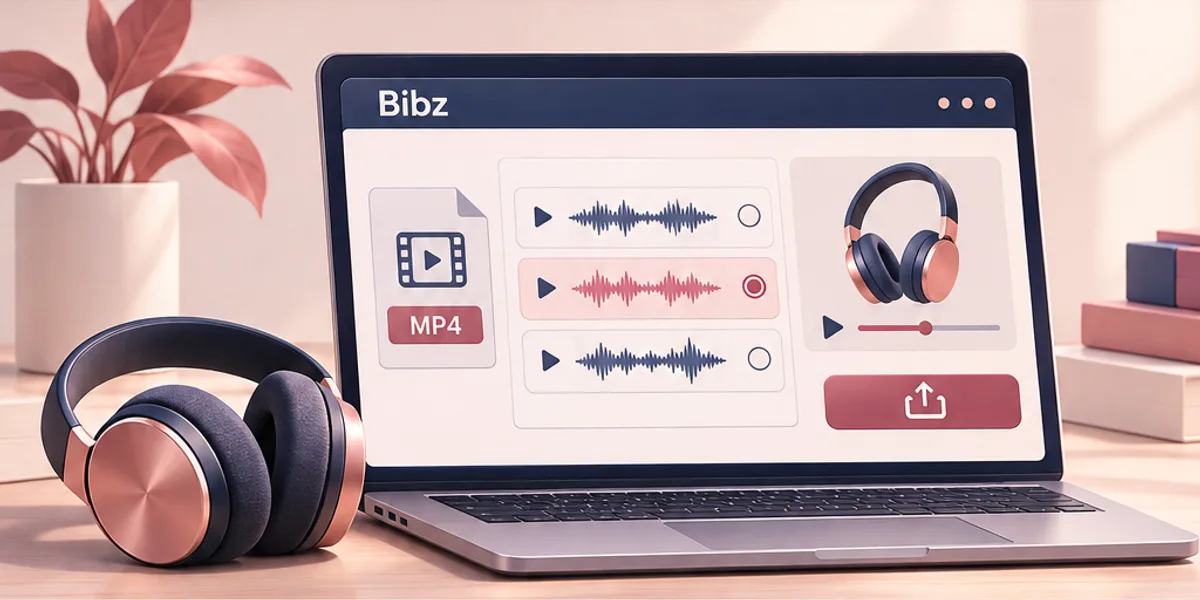
Choose the correct local MP4
Select a complete MP4 up to 256 MiB. Check its filename and make sure it is the recording version you intended to use. A video link is not an input file. If your recorder saved another container, create a genuine MP4 first while preserving the audio tracks you need; changing the extension alone does not do that.
Read the track list
Start the extraction step to inspect the file, then compare the available tracks. Look at names and codec information, and note which entries can be prepared. An MP4 may contain no audio, one track or several tracks. The list describes what is inside this particular file, not what your recording settings were supposed to create.
Select, prepare and listen
Choose the track you want to export and wait for the ready state. Use the current result label to confirm your selection, then listen to enough audio to identify it. If the browser cannot play its codec, download the prepared file and check it in a compatible application rather than treating silence in the preview as proof of an empty recording.
Save the current output before moving on
Download the file and verify its name, format and content. Repeat the selection and download for each additional track. Keep track numbers until you have identified every export, then rename copies for your workflow. Save required results before leaving the page; there is no persistent audio library.
Troubleshooting
Fix common MP4 audio extraction problems
Only one mixed track is available
Check whether your recording actually stored separate sources. Stereo left and right are channels within a track, not automatically independent microphone and desktop tracks. You can export the mixed audio, but removing a voice or separating music from it would require a different kind of processing.
The selected file is too large
The MP4 limit is 256 MiB. Use a media application to produce a smaller suitable MP4, preserving the separate audio tracks. Recheck the result before selecting it here: an export preset can combine sources into one track even when the original recording had several.
A track cannot be prepared or played
Distinguish export support from playback support. A codec may export successfully but remain unsupported by the browser player. If preparation itself fails, try a complete, readable copy of the source. If playback alone fails, test the downloaded file in software that supports its codec.
The result contains the wrong sound
Review the current track label and listen to another candidate. Embedded names may be absent or misleading, and some recordings include a full mix alongside separate sources. Save a new export only after confirming the selected track; repeatedly changing the file extension will not change its contents.
MP4 audio tracks: questions before you export
Can I extract the second audio track instead of the first?
Yes, select the required supported entry in the track list. Check its label and preview before downloading. This explicit choice is useful when the first track is a combined mix or a different language from the one you need.
Does an MP4 need multiple audio tracks?
No. A file with a single audio track can still be used to create a separate audio download. Multiple tracks are necessary only when your aim is to export independently recorded sources as separate files.
Is this a way to separate voices from background music?
Only if those sources were already stored on different tracks. A recording with voice and music mixed together remains a mix after extraction. The tool reads the existing structure; it does not identify instruments or perform AI source separation.
Why is the download M4A or audio-only MP4?
The output preserves a compatible original codec. AAC and ALAC use M4A; other supported audio uses an audio-only MP4. If your next application requires another format, convert the saved audio there rather than simply renaming its extension.
Will extraction make the audio sound better?
It avoids an additional encoding pass for compatible tracks, but it does not enhance the source. Clipping, background noise, low recording levels and earlier compression are still present. Listen to the exported track before deciding whether further editing is needed.
Can I download all tracks as one ZIP?
This tool exports a selected track at a time. Download each required result and check it before moving to the next. There is no ZIP bundle, merged soundtrack or background batch queue.
What should I check after downloading?
Confirm the filename and track number, open the file in your intended application, and listen to the beginning and a later passage. Keep the source MP4 until the separate audio has been checked in the workflow where you will use it.
Do I need an account or a server upload?
No account is needed to use the tool. Your chosen recording is read and processed in the browser rather than uploaded for conversion. Download the audio you want to keep before closing the session or switching to another task.
Extract the track your next step actually needs
Choose an MP4, identify its audio tracks, preview a supported selection and save a separate audio file.